How to Improve WiFi Signal at Home – Step-by-Step Guide
Published: 23 Nov 2025
A strong WiFi connection is now a basic need. Slow or unstable internet can be very frustrating. It affects everything from working at home to streaming, gaming, and using smart devices. A weak signal can interrupt your workflow, spoil your entertainment, and make even simple tasks feel harder than they should be.
Many people think they need costly upgrades to fix WiFi problems, but that’s not always the case. In most situations, a few smart changes can greatly improve your connection. The good news is that most WiFi issues can be solved easily. Once you understand what affects your signal, you can make your home network smoother, faster, and more reliable.
In this article, we will discuss how to improve WiFi signal at home in detail, so you can finally enjoy a smoother and more reliable internet experience.
Tips to Boost Wi-Fi Speed
When your internet starts slowing down, a few simple checks can help you spot the problem. These quick steps make it easier to understand what might be affecting your Wi-Fi. Slower speed can happen because of weak signals, old devices, or too many users on the same network. Taking a moment to review these basics can help you fix the issue faster.
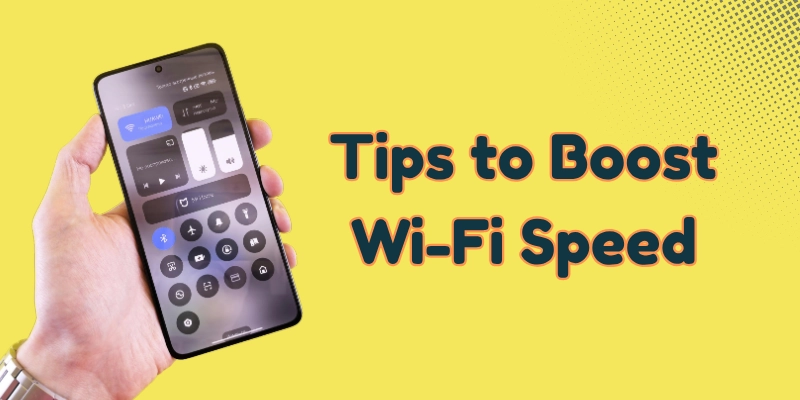
Here are the key points to check before making any changes. These steps will help you find what’s causing your internet to slow down.
- Start With a Simple WiFi Audit
- Place Your Router Correctly
- Update and Optimize Router Settings
- Reduce Network Congestion
- Use Wired Connections for Important Devices
- Extend Your WiFi Coverage
- Improve WiFi Security
- Advanced Fixes if the Problem Continues
- Simple Maintenance Habits
- Troubleshooting Common Wi-Fi Problems
Let’s dive into the details.
1. Start With a Simple Wi-Fi Audit
Before you try anything else, check the current strength of your WiFi.
- Run a speed test in different rooms.
- Walk around with your phone and note where the signal drops.
- Use any WiFi analyzer app to see your signal quality and nearby interference.
This helps you clearly see what’s causing the problem. It could be a poorly placed router, thick walls, interference, or too many devices using the Wi-Fi.
2. Place Your Router Correctly
The spot where you keep your router has a big impact on your WiFi signal. Placing it in the right location can make your internet work much better.
- Keep it in the center of your home, not hidden in a corner.
- Place it higher up, like on a shelf instead of the floor.
- Keep it away from microwaves, cordless phones, Bluetooth speakers, and metal appliances.
- If your router has antennas, position one vertically and one horizontally to improve coverage.
A small change in placement can instantly boost your signal strength.
3. Update and Optimize Router Settings
Your router’s internal settings can help you get more stable WiFi.
Update the firmware
Routers occasionally release updates that improve performance or fix bugs. Log in to your router’s admin panel and install any available updates.
Use the right WiFi band
- 2.4 GHz offers better range.
- 5 GHz offers better speed.
Use 5 GHz for nearby devices and 2.4 GHz for far rooms.
Change the WiFi channel
If you live in a crowded area, nearby routers might be interfering with yours. Switching to a less congested channel can instantly improve performance.
Use QoS (Quality of Service)
This feature lets you prioritize devices like laptops, smart TVs, or gaming consoles so they get more bandwidth during heavy use.
4. Reduce Network Congestion
Your WiFi slows down when too many devices compete for bandwidth.
- Remove devices you don’t use.
- Pause downloads and large updates during work or streaming.
- Check for apps running in the background on phones or TVs.
- Log out any guests or unauthorized devices.
A “lighter” network works faster and feels more stable.
5. Use Wired Connections for Important Devices
Not everything needs to be on WiFi.
Use an Ethernet cable for devices like:
- Desktops
- Gaming consoles
- Smart TVs
- Office setups
Wired connections are faster, more stable, and reduce pressure on your WiFi network.
6. Extend Your WiFi Coverage
If some rooms still have weak signals, consider one of these solutions:
WiFi Extender
A simple and affordable way to boost coverage in a nearby room.
Powerline Adapter
This sends your internet signal through your home’s electrical wiring.
It’s ideal when:
- Your router can’t be moved
- You want WiFi in a room far from the router
- You want a quick setup without cables running around
Mesh WiFi System
Perfect for large houses. Mesh systems use multiple nodes to blanket the entire home with strong, consistent coverage.
7. Improve WiFi Security
Poor security can slow your network if strangers or hidden devices are connected.
- Use a strong password.
- Enable WPA2 or WPA3 encryption.
- Check your router device list for unknown connections.
- Change your WiFi password occasionally.
Securing your network helps both speed and stability.
8. Advanced Fixes if the Problem Continues
If none of the basic steps help, try these advanced options:
Upgrade your router
Old routers have trouble when too many devices are connected. Upgrading your router can improve both speed and coverage. If your router is a few years old, think about getting a dual-band or tri-band model.
A router with Wi-Fi 6 will give you better stability. Choose one with stronger antennas if you need wider coverage.
Use a wired backhaul for mesh systems
If you use a mesh system, connecting the nodes with Ethernet can make it work much better. Place the nodes in open areas. Use good-quality cables like Cat6. Try to keep the cable lengths short to keep the signal stable.
Change your DNS
Switching to a faster DNS service, like Google or Cloudflare, can reduce website load times and improve browsing responsiveness.
9. Simple Maintenance Habits
Small habits can keep your WiFi performing well:
- Restart your router occasionally.
- Run a home WiFi audit every few months.
- Keep firmware updated.
- Recheck device placement as your home setup changes.
10. Troubleshooting Common WiFi Problems
Here are quick fixes for common issues:
Weak signal in one room
If the Wi-Fi signal is weak in a specific area, try improving coverage with a few quick adjustments.
- Add a mesh node or extender.
- Move the router slightly.
- Adjust antenna angles.
Speed suddenly drops
If your speed drops without warning, check for temporary issues that might be slowing things down.
- Check for background downloads.
- Restart the router.
- Test your connection with a wired device.
Frequent disconnections
If your connection keeps dropping, these steps can help stabilize your network.
- Update firmware.
- Check power stability.
- Reset to factory settings if nothing else works.
Conclusion
In this article, we’ve covered how to improve WiFi signals at home in detail. Improving your home WiFi doesn’t have to cost much. Start with small changes like placing your router in a better spot, adjusting basic settings, and reducing extra load on the network. If the signal is still weak, you can use a mesh system or powerline adapters to boost coverage.
Regular checks help keep your internet fast and steady. You can also restart your router once in a while to refresh the connection. Make sure no unwanted devices are using your WiFi. And keep your router updated so it works at its best.
Feel free to drop a comment and tell me which fix helped you the most.
FAQs
Here are some FAQs that can help you fix common WiFi issues and make your home network better.
Your WiFi can slow down due to weak router placement, interference, or too many connected devices. A quick audit of your setup usually helps you find the real cause. Checking device usage and signal strength can also point you in the right direction.
Place your router in a central, open spot. Keep it off the floor and away from walls, metal objects, and appliances that cause interference. A well-placed router ensures your signal reaches more rooms without dropping.
You can improve speed by:
- Moving the router to a better spot
- Updating router firmware
- Reducing network congestion
- Restarting the router occasionally
2.4 GHz covers longer distances but is slower. 5 GHz is faster but works best when you’re close to the router. Choosing the right band for each device can help you get smoother performance.
Check your router’s connected device list. If you see devices you don’t recognize, change your WiFi password to secure the network. This also helps keep your speed stable and prevents unwanted access.
Upgrade your router if it’s more than 4-5 years old, struggles with many devices, or lacks features like dual-band or WPA3. A newer router can handle higher speeds and give you better coverage across your home.
Try moving the router slightly or adjusting its antennas. If the signal is still weak, use a WiFi extender, powerline adapter, or mesh system for better coverage. These options help fill dead zones without changing your main setup.






- Be Respectful
- Stay Relevant
- Stay Positive
- True Feedback
- Encourage Discussion
- Avoid Spamming
- No Fake News
- Don't Copy-Paste
- No Personal Attacks
- Be Respectful
- Stay Relevant
- Stay Positive
- True Feedback
- Encourage Discussion
- Avoid Spamming
- No Fake News
- Don't Copy-Paste
- No Personal Attacks
